Install YouTube Video Bookmarker, play a YouTube video, click Bookmark to save the current timestamp, and add a title. Later, click any saved bookmark to jump back to that moment.
Step-by-step: bookmark a YouTube video at a specific time
- Open any YouTube video in Chrome.
- Play to the moment you want to save (a key point, quote, or step).
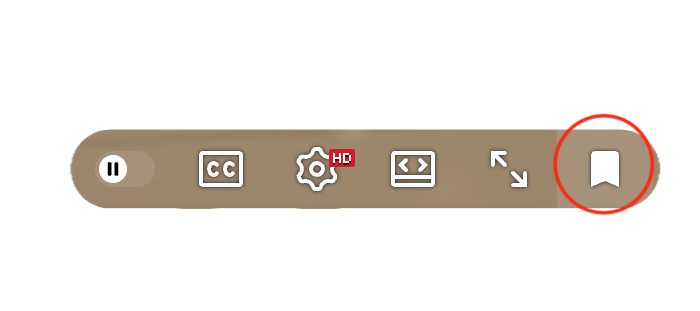
- Click Bookmark in the YouTube video player.
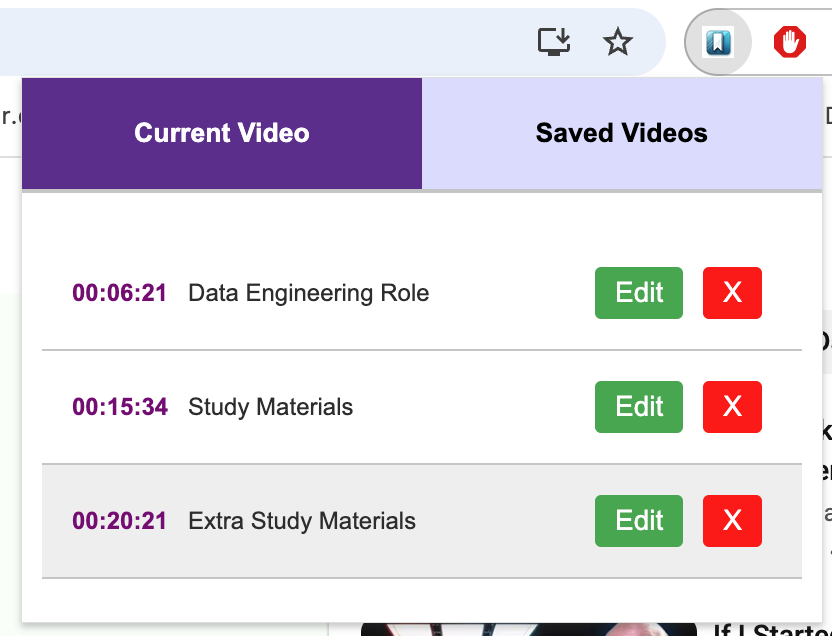
- Give the bookmark a title (example: “Definition”, “Step 3”, “Key quote”).
- Open the bookmark list and click a saved timestamp to jump back instantly.
Tips for better bookmark titles
- Start with the purpose: “Formula”, “Conclusion”, “Example”, “Requirement”.
- Keep it short: you’ll scan these later.
- If it’s a tutorial, include the step number (“Step 4 – Install”).
Common questions
Can I bookmark multiple timestamps in one video? Yes—save as many moments as you want.
Will bookmarks still be there later? Yes—your bookmarks persist in your browser.
Next read: Best way to save key moments in long YouTube tutorials.